
About browser
With the Maemo browser, you can view hypertext markup language (HTML) web pages on the internet. You can also view web pages that are designed specifically for mobile devices. These pages use extensible hypertext markup language (XHTML).
Open and browse web pages
Select  > Web, and enter the address in the address bar, or select a bookmark.
You can also view web pages in portrait orientation. To activate portrait browsing, press Ctrl + Shift + O.
-
Use normal mode
-
Use hover mode
To move the cursor on the web page, as if using a normal mouse, activate hover mode. For example, you can display information on a map by hovering the cursor over a location. To activate this mode, drag from the left of the touch screen onto the screen.
 is displayed.
To select an item when hover mode is activated, press the space or shift key.
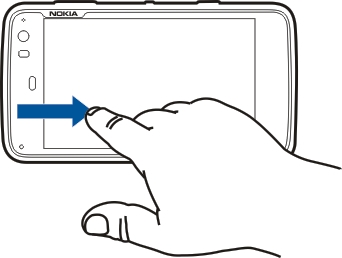
-
Use selection mode
 is displayed. To deactivate selection mode, select
 By default, web pages open in full screen mode. To exit full screen mode, select  .
.
 Tip:
Use the stylus to open links more easily.
Tip:
Use the stylus to open links more easily.
-
Zoom specific parts of a web page
-
Zoom a whole web page
-
Reload a page
-
Stop loading a page
-
Browse recently visited pages
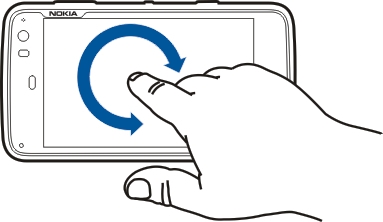
 .
.
 to open the previous web page.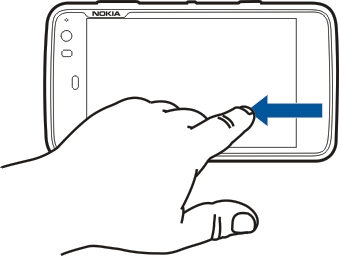
Search for text on a web page
 from the toolbar.
Browser toolbar
The browser toolbar helps you select frequently used functions of the browser. The toolbar is displayed in normal screen mode and hidden in full screen mode.
 -
-
 -
-
Organize bookmarks
Add a bookmark.
Add browser shortcuts to desktop
With browser shortcuts, you can quickly access bookmarked web pages.
Import bookmarks
You can import bookmarks to your device from other devices and computers.
-
To export an HTML file containing bookmarks from another browser to your device, use the relevant function of that browser.
-
Transfer the exported file from the other browser to your device. You can use mail, copy to a memory card, or use a USB data cable, for example.
-
Select
> Web, open the menu, and select Import bookmarks and the file.
Clear private data
-
- Browsing history - Clear the browsing history of web pages and links you have opened and web addresses you have entered using the application toolbar.
- Cache - Clear the memory cache. The memory cache is automatically cleared whenever you close the browser application.
- Cookies - Clear all cookies.
- Saved passwords - Clear all passwords you have saved for authentication purposes and web forms.
- Authenticated sessions - Clear all authenticated sessions.
- Geolocation permissions - Clear all permissions and bans you have given for web sites to use your position information.
Connection security
Data transmission between your device and a web server is encrypted if the secure server information banner is displayed. The security information includes the address of the website and the verification.
Security certificates may be required for some services, such as banking services. You are notified if the identity of the server is not authentic or if you do not have the correct security certificate in your device.
 Important:
Even if the use of certificates makes the risks involved in remote connections and software installation considerably smaller,
they must be used correctly in order to benefit from increased security. The existence of a certificate does not offer any
protection by itself; the certificate manager must contain correct, authentic, or trusted certificates for increased security
to be available. Certificates have a restricted lifetime. If "Expired certificate" or "Certificate not valid yet" is shown,
even if the certificate should be valid, check that the current date and time in your device are correct.
Important:
Even if the use of certificates makes the risks involved in remote connections and software installation considerably smaller,
they must be used correctly in order to benefit from increased security. The existence of a certificate does not offer any
protection by itself; the certificate manager must contain correct, authentic, or trusted certificates for increased security
to be available. Certificates have a restricted lifetime. If "Expired certificate" or "Certificate not valid yet" is shown,
even if the certificate should be valid, check that the current date and time in your device are correct.
Download files
Important:
Only install and use applications and other software from sources that you trust. Applications from untrusted sources may
include malicious software that can access data stored in your device, cause financial harm, or damage your device.
-
Select
> Web, and go to a web page that contains download links.
-
Select a link that points to the file that you want to download.
After a file transfer from an internet server starts, the name and size of the file and the progress of the download is displayed. Closing the dialog does not interrupt active downloads.
Save web pages
You can save web pages to your device, to view them offline.
View browsing history
You can view and visit your most recently visited web pages. The browsing history contains the web pages you have visited in the current browser window. The complete browsing history contains all the web pages you have visited in the past seven days.
Install a plug-in or an add-on
You can install plug-ins and XPI based add-ons (extensions) for the browser.
Important:
Only install and use applications and other software from sources that you trust. Applications from untrusted sources may
include malicious software that can access data stored in your device, cause financial harm, or damage your device.
Update or uninstall an add-on
You can disable or enable add-ons and plug-ins. You may need to restart the browser.
Browser settings
Adjust view
You can change the way web pages are displayed in the browser.
-
- Show images - To load and display all images, select Always. To display loaded images only, select Already in cache. To never load or display images, select Never.
- Text size - Define the text size. To display the browser-defined text size, select Normal. To display 150% or 200% larger text, select Large or Very large.
- Encoding - Text characters may not display correctly on web pages with different languages. To make a web page more readable, select the encoding that best matches the language of the web page.
Web settings
Select > Web, and go to a web page.
Open the menu, and select and from the following:
- Memory cache size - Define the amount of RAM you want to use as a cache.
- Use increase and decrease keys for - Select to use the zoom/volume keys to zoom or control the volume.
- Open in full screen - Switch to full screen mode when a new window is opened.
- Auto focus address field - Enter text directly in the web address field when you use the physical keyboard.
- Enable rotation - Activate portrait browsing. When activated, you can view web pages in portrait orientation, when you turn your device.
- Enable password saving - Save passwords for web forms, on website sign in pages, for example. When this option is not selected, passwords are not filled in and you cannot save passwords. Clearing this checkbox does not delete previously saved passwords.
- Open pop-ups - To allow all pop-up windows, select Always. To only allow pop-up windows that you open by selecting a link, select Only requested. To block all pop-up windows, select Never.
- Accept cookies - A cookie is data that a site saves in the cache memory of your device. Cookies contain information about your visits to websites. They help to identify you upon subsequent visits and retain information when you move between web pages. To accept the use of cookies, select Always. To be prompted before a cookie is stored, select Ask first. To prevent cookies from being stored, select Never.
- Geolocation - Define if you want to show your position information at street, district, or city level, or not to show it at all.
- Enable JavaScript - JavaScript is used on many websites. Websites may have malicious scripts and it can be safer not to run them. Some websites may not work at all without JavaScript enabled.
- Allow JavaScript pausing - Suspend the use of Flash and JavaScript whenever the browser window is open in the background.