
About calls
You can make voice calls and internet calls with your device. You can also make internet video calls.
 >
> You can see your recent calls in the Phone main view. The calls are indicated with the following icons:


 Tip:
You can make a call to a person saved in Contacts using the physical keyboard. On the desktop, start entering the name of
the person to open Contacts. Select the contact from the proposed matches, and select
Tip:
You can make a call to a person saved in Contacts using the physical keyboard. On the desktop, start entering the name of
the person to open Contacts. Select the contact from the proposed matches, and select  .
You can also enter a phone number on the desktop using the physical keyboard. Press and hold
.
You can also enter a phone number on the desktop using the physical keyboard. Press and hold  , and enter the number. In the virtual keypad view, select .
Change display orientation
You can set the Phone application to be in portrait or landscape mode, or to change automatically to portrait or landscape according to the orientation in which you hold the device. You can also set the device to open the Phone application when you turn the device to portrait orientation, if on the desktop.
Touch screen during calls
Your device has a proximity sensor. To extend battery life and prevent accidental selections, the touch screen is disabled automatically during calls, when you place the device next to your ear.
Do not cover the proximity sensor, for example, with protective film or tape.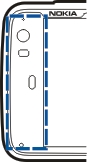
Make voice calls
Make a call
Tip:
You can also set the Phone application to open from the desktop when you turn your device to portrait orientation. To activate
this feature, open the Phone menu, and select Turning control.
Hold your device correctly during a call.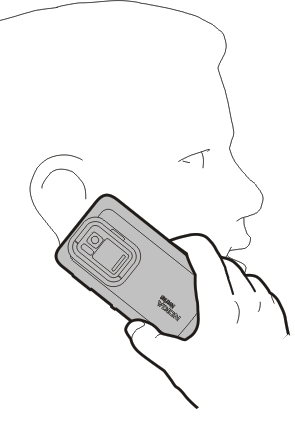
-
Select a recipient from the contacts list
Select Select contact and the contact.
To search for a contact, use the physical keyboard to start entering the first characters of the name, and select from the proposed matches. If you have saved several numbers for a contact, select the desired number from the list, and press the call key.
If you hold the device in portrait orientation, you can use the initial character icons on the right side of the display to find your contact.
-
Select a recipient from the recent calls list
-
Enter the phone number manually
-
Enter an international phone number
-
Make the call
-
End the call
-
Cancel the call attempt
 and the cellular call type. Enter the phone number, including the area code.
 .
.
Tip:
To add a contact card to the desktop, select Contacts and a contact, open the menu, and select Create shortcut.
Answer a call
 is displayed.
 .
.
Make a conference call
Conference calls (network service) can only be made over cellular networks and can have a maximum of three participants (including yourself).

Send Touch tones
You can send dual-tone multifrequency (DTMF) Touch tones during an active call to control your voice mailbox or other automated phone services.
Make internet calls
Internet calls
Internet calls are based on the voice over internet protocol (VoIP) that allows you to make and receive calls over the internet. To use this feature, you must have an active network connection (WLAN or packet data) and a registered internet call account with an internet call service provider, and your availability status must be On to allow you to receive calls.
Internet call services may not support emergency calls. Contact your internet call service provider for further details.
Create and edit call accounts
With call accounts, you can use internet call or instant messaging services.
Create a call account
Sign in to an existing call account
-
Enter your user details, and select Sign in.
When an existing account is activated, your contacts are automatically retrieved from the account server, and added to your contacts list.
Make an internet call.
-
Connect your device to an internet connection, and select a VoIP service account. Your availability status changes to Online.
You can also make an internet call from the Contacts application.
Answer an internet call
Make internet video calls
About internet video calls
To make an internet video call (network service), you need to be in the coverage of a 3G network, or use a wireless LAN (WLAN) internet connection. You also need to have a VoIP account.
For availability and subscription to internet video call services, contact your service provider. While talking, you can see a real-time, two-way video between you and the recipient of the call, if the recipient has a compatible device. You can broadcast a live video stream using the device camera.
Internet video calls can only be made between two parties, can only be made to compatible mobile devices or ISDN clients, and cannot be made while another voice, video, or data call is active. Internet video calls are only made in landscape mode.
Answer a video call
Make an internet video call
Options during a call
- New call to number - Call another number to start a conference call.
- New call to contact - Call a contact to start a conference call.
- Hold call - Put the call on hold.
- Turn on video - Activate video sending.
- New call to number - Call another number to start a conference call.
- New call to contact - Call a contact to start a conference call.
- Activate call - Activate the call.
 . To unmute, select
  .
.
 .
.
Call timers
You can view the duration of received and dialled calls. The duration of voice and internet calls is displayed separately.
Emergency calls
Before making an emergency call, switch the device on, and check for adequate signal strength. If the screen and keys are locked, slide the lock switch on the side of the device to unlock them.
 Important:
This device operates using radio signals, wireless networks, landline networks, and user-programmed functions. Emergency calls
can be made using the cellular phone.It is not possible to make an emergency call using voice calls over the internet (internet calls). Connections in all conditions cannot be guaranteed. You should never rely solely on any wireless device for essential communications
like medical emergencies.
Important:
This device operates using radio signals, wireless networks, landline networks, and user-programmed functions. Emergency calls
can be made using the cellular phone.It is not possible to make an emergency call using voice calls over the internet (internet calls). Connections in all conditions cannot be guaranteed. You should never rely solely on any wireless device for essential communications
like medical emergencies.
Make an emergency call
Make an emergency call without entering PIN, PUK, or lock code
-
When the device asks for the code, enter the emergency number for your present location. The
Emergency call icon appears.
-
Select
Emergency call to make the call. After the emergency call, you need to enter the required PIN, PUK, or lock code to be able to use other
device functions.
When making an emergency call, give all the necessary information as accurately as possible. Your wireless device may be the only means of communication at the scene of an accident. Do not end the call until given permission to do so.