
Positioning (GPS)
About GPS
The Global Positioning System (GPS) is operated by the government of the United States, which is solely responsible for its accuracy and maintenance. The accuracy of location data can be affected by adjustments to GPS satellites made by the United States government and is subject to change with the United States Department of Defense civil GPS policy and the Federal Radionavigation Plan. Accuracy can also be affected by poor satellite geometry. Availability and quality of GPS signals may be affected by your location, buildings, natural obstacles and weather conditions. GPS signals may not be available inside buildings or underground and may be impaired by materials such as concrete and metal.
The coordinates in the GPS are expressed using the international WGS-84 coordinate system. The availability of the coordinates may vary by region.
Assisted GPS (A-GPS)
Your device also supports assisted GPS (A-GPS).
A-GPS requires network support.
When you activate A-GPS, your device receives useful satellite information from an assistance data server over the cellular network. With the help of assisted data, your device can obtain the GPS position faster.
Your device is preconfigured to use the Nokia A-GPS service, if no service provider-specific A-GPS settings are available. The assistance data is retrieved from the Nokia A-GPS service server only when needed.
You must have an internet access point defined in the device to retrieve assistance data from the Nokia A-GPS service over a packet data connection. You can define the access point for A-GPS in network positioning settings. A wireless LAN (WLAN) access point cannot be used for this service. Only a packet data internet access point can be used. Your device asks you to select the internet access point when GPS is used for the first time.
Hold your device correctly
When using the GPS receiver, ensure you do not cover the antenna with your hand.
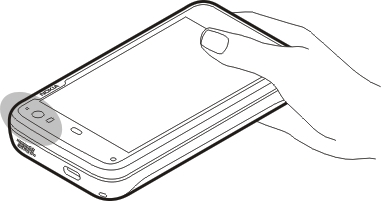
Establishing a GPS connection may take from a couple of seconds to several minutes. Establishing a GPS connection in a vehicle may take longer.
The GPS receiver draws its power from the device battery. Using the GPS receiver may drain the battery faster.
Position requests
You may receive a request from a network service to receive your position information. Service providers may offer information about local topics, such as weather or traffic conditions, based on the location of your device.
When you receive a position request, the service that is making the request is displayed. To allow your position information to be sent, select Accept. To deny the request, select Reject.
Location settings 
Select  > Settings and Location.
- Enable - Activate the internal GPS receiver in your device. The GPS receiver is automatically activated when an application that uses GPS data is opened.
- GPS device - Select the GPS receiver to use.
- Pair new device - Pair an external GPS receiver with your device. Select the GPS receiver from the list of found devices.
Ovi Maps for mobile 
About Maps
With Maps, you can see your current location on the map, browse maps of different cities and countries, search for places, and plan routes from one location to another.
When you open Maps, you may need to select an internet access point used to stream map data.
When you browse to a new area on the map, map data is streamed from the internet. Some maps may be available in your device or on a memory card.
 Tip:
To avoid data transfer costs, you can also use Maps without an internet connection, and browse the maps that are saved in
your device or memory card.
Tip:
To avoid data transfer costs, you can also use Maps without an internet connection, and browse the maps that are saved in
your device or memory card.

View the map
When the GPS connection is active,  shows your current location on the map.
 .
.
 and the country, state, city, or street view.
Map elements
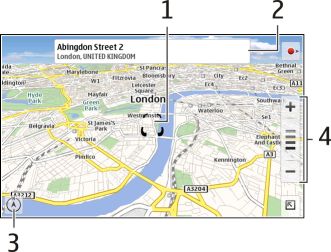
Edit the map
Change the look of the map to suit your needs.
Select
 >
Maps
and from the following:
>
Maps
and from the following:
- Map view - In the standard map view, details such as street names or highway numbers, are easy to read.
- Satellite - For a detailed view, use satellite images.
- Terrain - View at a glance the ground type and altitude, for example, when you are traveling off-road.
- 3D View - For a more realistic view, change the perspective of the map.
- 3D Landmarks - Display prominent buildings and attractions on the map.
- Night Mode - Dim the colors of the map. When traveling at night, the map is easier to read in this mode.
- Tips - Display tips on how to use Maps.
Search for a place
You can find specific addresses and types of business, such as restaurants or hotels.
The location is displayed on the map. If more than one search result is available, to view the other search results on the
map, select  or
or  .
.
Plan routes
You can create walking or driving routes, view them on the map, and get turn-by-turn directions.
Create and view a route
-
Maps automatically sets your current location as the starting point, if available.
-
If you want to set the starting point manually, enter the search terms in the search field
 , and select
  .
.
-
To add the desired location to the route point list, in the map view, select
 . To view more search results, select
  .
.
-
To search for the destination, in the route point list, enter the search terms in the search field
 , and select .
-
To add more route points, in the route point list, select
. Enter the search terms in the search field, and select .
-
Select View Route. To consecutively view the route points on the map, select
or .
Tip:
To select route points from the map, in the route point list, select  .
.
 .
.
Modify the settings for a route
 or
or  .
.