
Key features
With your new Nokia N900 , you can keep track of your calls and mail messages, browse the web, and switch instantly between open applications and ongoing conversations. Some of the key features are highlighted here:

|
Use the Media player application to listen to your music, view videos, or tune in to your favorite internet radio stations. |

|
Use the Calendar application to stay up-to-date and plan your meetings. |


|
Use the Phone application to make a voice, internet, or internet video call to a friend. |


|
Use the Camera application to capture images and record video clips, then upload directly to the web to share with friends or the online community. |


|
Use the Conversations application to exchange text messages or start instant messaging (IM) conversations with your IM contacts. |

|
Use the Application manager application to check the available updates for applications and download them to your device. |

|
Find popular applications, themes, and wallpapers from the Ovi Store. |

About Maemo software
This device uses Maemo 5 software on Linux. The software is built for computer-like performance, enabling the running of multiple applications at the same time, and delivering a wide range of activities ranging from web browsing to video recording. Your device supports Maemo Update, which allows updating the operating system and applications over a WLAN or packet data connection.
With Maemo software, it is possible to develop your own applications for your device. To do this, you can use the Maemo Software Development Kit (Maemo SDK). For more information on what Maemo software is and how to develop applications, see maemo.nokia.com.
About your device
Antenna locations
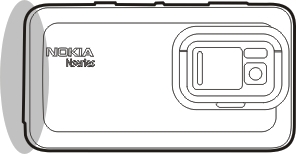
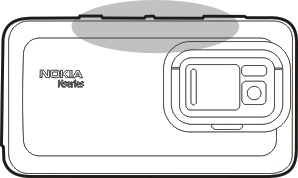
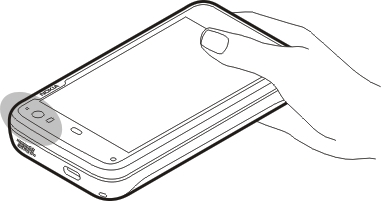
Control volume
 Tip:
You can view the current volume setting, and also adjust the volume, from the status menu. Tap the status area to open the
menu. Use the volume slider
Tip:
You can view the current volume setting, and also adjust the volume, from the status menu. Tap the status area to open the
menu. Use the volume slider  to adjust the volume.
Notification light
The notification light can indicate the status of your device. For example, it can inform you about the battery charging status, and tell you if you have missed a phone call or received, for example, a mail or text message.
You can activate or deactivate the notification light for each notification type by editing the notification light settings.
The colors of the notification light indicate the following:
 Application triggered notification light (received text message, instant message, or mail)


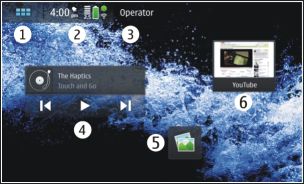
About the desktop
The desktop is displayed when you switch on the device. It offers quick access to different features of your device. You can have up to four desktops. The desktops can be personalized to have different widgets, bookmarks, background images, and shortcuts to applications and contacts.
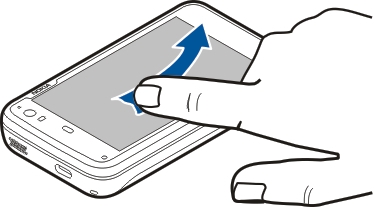
 , and then the desired number. After entering the first number, you can use either the physical keyboard or the virtual keypad
to enter more numbers.
, and then the desired number. After entering the first number, you can use either the physical keyboard or the virtual keypad
to enter more numbers.
Applications menu
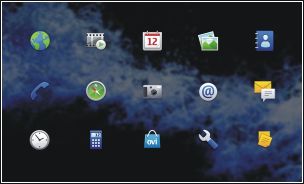
 . All unsaved changes and selections are cancelled.
Status area and status menu
Status area

The status area informs of the current status of items that are relevant across the device. The current time, and battery and signal strength are displayed. In addition, the status area may indicate your internet connection status, available updates, or your active profile.
Status area indicators
|
The device is connected to a compatible USB device for charging, but the device is not receiving enough power. |
|


|
A Bluetooth connection with one or more Bluetooth devices is active. |
|
|
SIM card not available (card not inserted or PIN code not entered). |
|
 ,
,  ,
,  , or
, or 


If the availability status is offline, no indicator is shown in the status area.


If a third party application adds an icon to the status area, it is placed after the default icons.
Open the status menu
The status menu displays, for example, the remaining battery life, device volume, and Bluetooth connection status. To change the displayed status, select the respective status menu item.
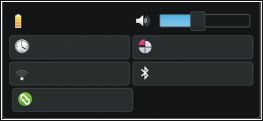
Dashboard
The applications that are currently running can be seen on the dashboard. The dashboard also displays the notifications that you have received but have not opened yet, for example, text and mail messages, as well as missed calls.
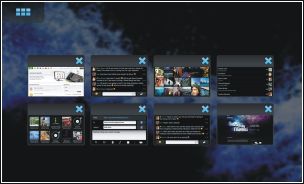
 . Select
 Tip:
You can now open another application by selecting  . The previously opened application is left running in the background.
Respond to a notification
-
When you receive, for example, a new mail, instant message, or text message, a notification is briefly displayed. You can view the message by selecting the notification. If you do not select the notification while it is displayed, the notification remains on the dashboard. To indicate this, the
 icon blinks and then stays lit.
About the touch screen
Touch screen actions
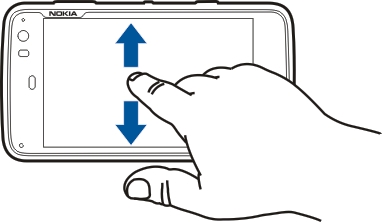

Touch screen actions in applications
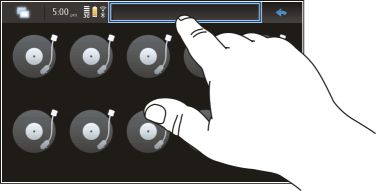
Text input
Use the physical keyboard
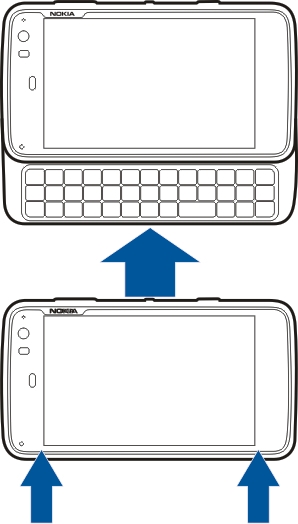
To use the physical keyboard, slide the touch screen up. When you use the physical keyboard, the virtual keyboard is disabled.
In addition to the character keys, the physical keyboard contains the following keys:
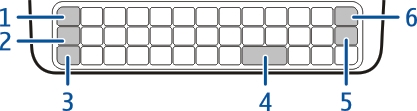
-
Enter text
-
Switch between character cases
-
Enter a number, additional character, or common symbol
-
Enter a character not found from the keyboard
-
Use word completion
Add an accent to a character
Activate the virtual keyboard.
To use the virtual keyboard, make sure the physical keyboard is closed, and select a text entry field, the web address field of the browser, for example. The virtual keyboard needs to be activated before you can use it.
 .
.
 , then
  and the desired option.
 .
.
 .
.
 .
.
Switch between input methods
To switch between the virtual keyboard and the physical keyboard, slide the touch screen up or down.
Switch virtual keyboard layout
The virtual keyboard can provide character sets for two different input languages at the same time, for example, the Russian and Latin character sets. To define the input languages, edit the text input settings.
Text input settings 
Select > Settings and Text input.
- Hardware keyboard layout - Define the character set used in the physical keyboard. Changing this setting may lead to the physical keys not matching the hardware keyboard layout.
- Use virtual keyboard - Activate the virtual keyboard.
- Word completion - Enable word completion.
- Auto-capitalization - Enable auto-capitalization, to capitalize the first letter of sentences automatically when entering text.
- Insert space after word - Insert a space after each accepted word completion.
- 1st language - Select the first language. To select a dictionary to use for the first language, select Dictionary and the dictionary language.
- 2nd language - Select the second language. To select a dictionary to use for the second language, select Dictionary and the dictionary language. When you switch to the secondary language, the current dictionary for the word completion feature is also changed.
- Use dual dictionaries - Use both language dictionaries at the same time.
Word completion and dictionaries
If word completion is activated, the device suggests suitable endings for the words that you start writing. Word completion is based on a built-in dictionary. When you enter characters, the device searches its dictionary for words starting with these characters.
You can select to use dual dictionaries to allow the device to search from the dictionary of the second language if it cannot find a suitable word in the first language dictionary.
The dictionary can learn new words automatically from the text you have entered. Text entered in password fields is not saved in the dictionary.
Protect your device
Lock your device
To prevent unauthorized use of your device, change the lock code, and set the device to automatically lock after a certain length of time.
Briefly press the power key, and select Secure device.
Unlock your device
Set the length of the time-out period
Change the lock code
If you tap outside the dialog at any time, the device lock code is not changed.
Keep the new lock code secret and in a safe place, separate from your device.
If you forget the lock code and your device is locked, you must take the device to a Nokia authorized service facility and additional charges may apply. To unlock the device, the software must be reloaded, and all data you have saved in the device, may be lost.
Lock touch screen and keys
Locking the touch screen and keys prevents accidental keypresses.
Explore Ovi 

Visit Ovi
Ovi contains services provided by Nokia. With Ovi, you can create a mail account, share your images and videos with friends and family, plan trips and view locations on a map, download games, applications, videos, and tones to your device, and purchase music. The available services may vary by region, and not all languages are supported.
To access Ovi services, go to www.ovi.com, and register your own Nokia account.
For more information on how to use the services, see the support pages of each service.
About Ovi Store
In Ovi Store, you can download mobile games, applications, videos, images, themes, and ringing tones to your device. Some
items are free of charge; others you need to pay for with your credit card or in your phone bill. The availability of payment
methods depends on your country of residence and your network service provider. Ovi Store offers content that is compatible
with your cellular phone and relevant to your tastes and location.