
About Conversations
In Conversations, you can send text messages and instant messages.
The services share the main view, where text message and instant message conversations are listed. Select a conversation to see the messages in it.
You can send instant messages to one contact, or have a group conversation with several participants.
You can see your recent messages in the Conversations main view. The messages are indicated with the following icons:
 You have one or more unread text messages in the conversation.
 You have replied to this text message (the latest message in the conversation is sent by you).
 You have one or more pending text messages in the conversation.
 You have one or more failed text messages in the conversation.
 You have one or more unread instant messages in the conversation.
 You have replied to this instant message (the latest message in the conversation is sent by you).
 Tip:
To call a contact from the conversations main view, select and hold a conversation, and from the pop-up menu, select Open contact card and the call type.
Tip:
To call a contact from the conversations main view, select and hold a conversation, and from the pop-up menu, select Open contact card and the call type.
Tip:
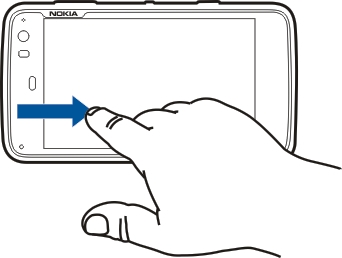
To copy text from a received or sent text or instant message, activate selection mode. Drag from the left of the touch screen
onto the screen, and select  .
Drag your finger on the text to select, and, to copy the text, press ctrl + C.
To copy an entire text or instant message, select and hold the message, and from the pop-up menu, select Copy.
.
Drag your finger on the text to select, and, to copy the text, press ctrl + C.
To copy an entire text or instant message, select and hold the message, and from the pop-up menu, select Copy.
Send text messages
Send a text message
-
To add a recipient, select To and a contact, or enter a phone number.
Text messages are displayed in the main view as a conversations list.
Your device supports text messages beyond the limit for a single message. Longer messages are sent as two or more messages. Your service provider may charge accordingly. Characters with accents, other marks, or some language options take more space, and limit the number of characters that can be sent in a single message.
Forward a text message
Send a contact card
Save a received contact card
Send instant messages
Create and sign in to an instant messaging account
To send instant messages, you must create an instant messaging account.
Select  > Conversations, open the Conversations menu, and select Accounts.
Create an instant messaging account
-
Enter your user details. Depending on the service, you may have to set up an account using a web browser. Follow the instructions.
Sign in to an existing instant messaging account
When an existing account is activated, your contacts are automatically fetched from the account server and added to your contacts list.
Send an instant message
 .
.
Start a group conversation
Some instant messaging (IM) services support group conversations. In a group conversation, you can have an IM conversation among several participants.
Participate in a chat room conversation
You can receive and send chat room messages if you have been invited to a chat room. To join a chat room, you can also enter the address of the room.
Save and view instant messaging history
Your instant messaging history is saved automatically.
Change your avatar
An avatar is a small image that you can use to represent yourself when sending instant messages.
Change availability status
Tap the status area to open the status menu, and select Availability and from the following:
- Online,Busy, orOffline - Set your availability status.
- Type your status message - Enter your availability status message.
- My location - Define your current location.
- New status - Add a new availability profile. With availability profiles, you can modify your availability separately for each account.
Account settings
Delete messages and conversations
Filter conversations
To find a conversation with a specific recipient, start entering the recipient's name using the keyboard. Conversations with recipients starting with the entered characters are displayed in the conversations list view.
Text message and instant message settings
Open the Conversations menu, and select Settings and from the following:
- Receive text message delivery reports - Select whether to receive text message delivery reports.
- SMS center number - Use the text message center number stored on your SIM card, or define another number.
- Smileys theme - Select a theme for smileys.
- IM theme - Select a theme for the conversations view.