
About Media player
With Media player, you can listen to music and other audio files stored in your device or on a compatible memory card (if inserted) and audio streams from the internet. You can also play videos or streamed videos from the internet, and stream content from available media servers.
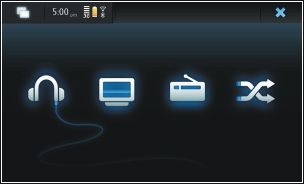
 .
.
 ). To see all servers, if there are more than four servers available, select
 File formats
The supported video file formats are 3GP, MOV, AVI, MP4, WMV, and ASF. Streaming performance depends on the bandwidth availability.
The supported audio file formats are MP3, AAC, WMA, M4A, AMR, AWB, and WAV.
The supported playlist formats are M3U, PLS, ASX, WAX, WVX, and WPL.
Music player does not necessarily support all features of a file format or all the variations of file formats.
Add the media widget to desktop
You can add the media widget to the device desktop. With the widget, you can control audio playback (music or internet radio), and display the media player's Now playing view.
 >
>
Search for media files
In views that list media files, start entering search terms using the keyboard. The search bar becomes visible. Matching files are displayed.
View MAFW plug-ins
You can view Media Application Framework (MAFW) plug-ins that have been installed for the Media player.
Open the menu, and select Plug-ins and a plug-in.
Use the Application manager to install, update, or uninstall plug-ins.
Play music with Media player 
Play music
 .
.
 . You can also use the space key on the physical keyboard.
 .
.
 or
or  . You can also use the arrow keys on the physical keyboard.
 .
.
 .
.
 . Use the slider or volume keys to adjust the volume.
Browse the music library
Select  > Media player and Music.
-
Browse the music library
-
Access the Now playing view
-
Switch between the current song and current playlist view in the Now playing view
-
Set a song as your ringing tone
 .
.
In the Now playing view, you can access the FM transmitter, save the playlist, or clear the current playlist from the menu.
If you close and reopen the Media player application, the last selected view is used.
View playlists
The Media player library contains a default set of automatic playlists. The contents of the playlists are updated each time they are opened. You cannot edit or delete automatic playlists.
Add songs to current playlists
Save playlists
Shuffle songs
With the shuffle feature, you can listen to songs from the Now playing view or playlists in a random order.
Use the FM transmitter 
About the FM transmitter
With the FM transmitter, you can play songs in your device using a compatible FM receiver, such as a car radio or a home stereo system.
The operating distance of the FM transmitter is up to a maximum of 3 meters (10 ft). The transmission may be subject to interference due to obstructions, such as walls, other electronic devices, or from public radio stations. The FM transmitter may cause interference to nearby FM receivers operating on the same frequency. To avoid interference, always search for a free FM frequency on the receiver before using the FM transmitter.
The operating frequency of the transmitter ranges from 88.1 to 107.9 MHz.
If the transmitter is not transmitting anything for one minute, it switches off automatically.
The FM transmitter cannot be used while the headset or TV-out cable is connected.
Play music using the FM transmitter
Calls are not broadcast using the FM transmitter. Playback is paused for the duration of the calls. The FM transmitter cannot be used during USB charging.
FM transmitter settings
Play videos with Media player 
Play videos
 .
.
 or
or  .
.
 .
.
Browse the video library
The video library contains videos recorded with the device camera, transferred from your PC, or downloaded from the web, and bookmarked video streams.
Add, edit, and remove video bookmarks
Add a video bookmark
-
Use the web browser to go to a web page containing video stream. The stream opens in the media player.
-
When the stream is playing, to save it as a bookmark, select
 .
.
-
Enter the name and web address of the bookmark, and select Save.
Use TV-out to play videos on your TV
Set the used television system
Play videos on a TV
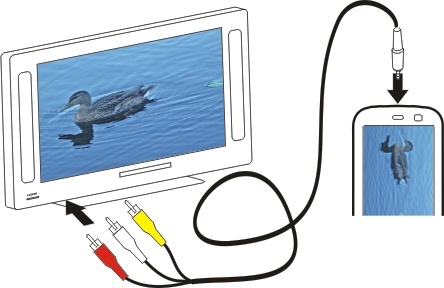
Play videos from the internet
Listen to internet radio with Media player 
Listen to internet radio
With Internet radio, you can listen to internet radio stations or other compatible audio streams. The Internet radio application supports MP3 and WMA files, and M3U, PLS, and WPL playlists. Some playlist file formats, such as ASX and WAX, are supported only partially.
Add internet radio stations
Internet radio can include one or more web links to radio streams.
Play music from media server
About media servers
With media servers, you can store and share your media files, that is, images, video and audio clips, and other types of multimedia.
Universal Plug and Play (UPnP) technology allows devices to connect to each other, and simplifies communication and the sharing of data and media in the home. Media servers are available for most operating systems and many hardware platforms.
Your device functions as a UPnP client and can auto-detect media servers that are connected to the same local network as your device and are configured accordingly.
The Media player application provides access to media servers in the wireless environment. The available servers are displayed at the bottom of the main Media player view. You cannot delete the servers from the main Media player view nor delete media from them.
Browse media servers
After scanning the wireless network, discovered media servers are displayed at the bottom of the main Media player view. If
there are more than four servers available, to see all servers, select  More.
More.
When you select a server, the root directory of the server is loaded and displayed. You can browse the servers and their content.