
Camera
Capture images
Image indicators
The indicators in the camera viewfinder area display the current camera settings. The indicators in image mode are the following:
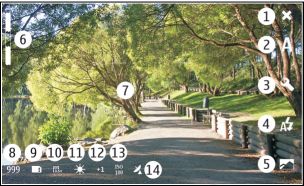
2 -
Scene mode in use (for example,  Automatic)
4 -
Flash mode in use (for example,  Automatic)
 )
)
6 - Zoom level (hidden at the default zoom level)
7 -
Autofocus crosshair ( , not shown in all image modes)
8 - Image counter (estimated number of images you can capture using the current settings and available memory)
9 -
Memory in use (for example, Internal storage)
10 -
Image resolution (for example,  )
)
11 -
White balance (for example,  ). Only visible if set to other than Automatic.
12 -
Exposure (for example,  ). Only visible if set to other than 0.
13 -
ISO sensitivity (for example,  ). Only visible if set to other than Automatic.
14 -
Geotag (  , if geotagging is enabled). The icon blinks when the coordinates for the location are being retrieved.
Capture an image
When capturing an image, note the following:
-
The quality of a digitally zoomed image is lower than that of a non-zoomed image.
-
The camera goes into battery saving mode if you perform no actions for about a minute. To continue capturing images, activate the touch screen.
-
To activate the camera, open the lens cover. If the camera is active in the background, and the lens cover is open, press the capture key to activate the camera.
-
To lock the focus on an object, press the capture key halfway down. A green locked focus indicator is displayed. If the focus was not locked, a red focus indicator is displayed. Release the capture key, and press it halfway down again. You can also capture an image without locking the focus.
-
To capture an image, press the capture key. Do not move the device before the image is saved.
Geotag images and videos
If you have enabled geotagging, the device saves geotag information such as country, city, and suburb, of every image and video you capture or record.
You need an internet connection to be able to add geotag information to your files.
It may take several minutes to obtain the geotag information. The availability and quality of GPS signals may be affected by your location, buildings, natural obstacles, and weather conditions. Your geotag information is not saved anywhere else than your device. If you share a file that includes geotag information, also the geotag information is shared, and your location may be visible to third parties viewing the file.
Enable geotagging
 >
> After capturing an image
After you have captured an image, the post-capture view is displayed. In this view, you can, for example, delete the image or edit the tags of the image.
If you have selected in the general camera settings, the camera returns to the pre-capture view, and the post-capture view is not displayed. In this case, you can edit the image in Photos.
In the post-capture view, if the image you captured is successfully geotagged, the country, city, and suburb geotags are displayed. If the geotags are not readily available at the moment of capture, the device tries to retrieve the geotags. Acquiring geotags is displayed.
 -
-
 -
-
Record videos
Video indicators
The indicators in the camera viewfinder area display the current camera settings. The indicators in video mode are the following:
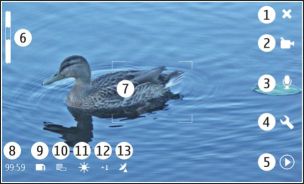
2 -
Scene mode in use (for example,  Automatic video)
3 -
Sound recording (for example,  sound recording deactivated)
 )
)
6 - Zoom level (hidden at the default zoom level)
8 - Time remaining. Estimated total video recording time, using the current settings and available memory.
9 -
Memory in use (for example,)
10 -
Video resolution (for example,  )
)
11 -
White balance (for example, ). Only visible if set to other than Automatic.
12 -
Exposure (for example, ). Only visible if set to other than 0.
13 -
Geotag ( , visible if geotagging is enabled). The icon blinks when the coordinates for the location are being retrieved.
Record a video clip
Start recording
-
To activate the camera, open the lens cover. If the camera is active in the background, and the lens cover is open, to activate the camera, press the capture key.
-
To lock the focus on an object, press the capture key halfway down. A green locked focus indicator is displayed. If the focus was not locked, a red focus indicator is displayed. Release the capture key, and press it halfway down again. You can also record a video without locking the focus.
The elapsed recording time is displayed in red.
After recording a video
After you have recorded a video, the post-recording view is displayed. In this view, you can, for example, delete the video or edit tags.
If you have selected in the general camera settings, the camera returns to the pre-recording view, and the post-recording view is not displayed.
Camera settings
Scene modes
When you activate the camera, the last used scene mode is in use.
-
Automatic
-
The default image scene mode. Capture images in a variety of situations.
-
 Night
-
Capture images in low light conditions. The image may take longer to be processed.
Night
-
Capture images in low light conditions. The image may take longer to be processed.
-
 Macro
-
Focus on close up objects. The images may be susceptible to noticeable camera shake.
Macro
-
Focus on close up objects. The images may be susceptible to noticeable camera shake.
-
 Landscape
-
Capture landscape images with clear outlines, colors, and contrast.
Landscape
-
Capture landscape images with clear outlines, colors, and contrast.
-
 Portrait
-
Capture portraits of people, in good lighting conditions.
Portrait
-
Capture portraits of people, in good lighting conditions.
-
 Action
-
Capture fast moving objects, using a short exposure time. You can capture successive images rapidly. The auto-focus crosshair
is not displayed.
Action
-
Capture fast moving objects, using a short exposure time. You can capture successive images rapidly. The auto-focus crosshair
is not displayed.
-
Automatic video
-
The default video scene mode. Record videos in a variety of situations.
-
 Night video
-
Record videos in low light conditions. Fewer frames per second (FPS) are recorded than in automatic video scene mode. The
video may take longer to be processed.
Night video
-
Record videos in low light conditions. Fewer frames per second (FPS) are recorded than in automatic video scene mode. The
video may take longer to be processed.
Image settings
If you change the scene mode, the white balance, exposure, and ISO sensitivity settings are reset to defaults. The image resolution remains the same.
-
- White balance - Select the current lighting conditions. Colors are reproduced more accurately.
- Exposure - Adjust the exposure compensation. If you are capturing a dark subject against a very light background, such as snow, adjust the exposure to +1 or to +2 to compensate for the brightness of the background. For light subjects against a dark background, use -1 or -2.
- ISO sensitivity - Adjust the light sensitivity. Increase the light sensitivity in low light conditions to avoid too dark and blurry images. Increasing the light sensitivity may also increase the image noise.
- Resolution - Select the image resolution.
Video settings
-
Select
to switch from image mode to video mode, if necessary.
-
Select
 and from the following:
- White balance - Select the current lighting conditions. Colors are reproduced more accurately.
- Exposure - Adjust the exposure compensation. If you are filming a dark subject against a very light background, such as snow, adjust the exposure to +1 or to +2 to compensate for the brightness of the background. For light subjects against a dark background, use -1 or -2.
- Resolution - Select the video resolution. Higher resolution videos have a larger file size.
Flash settings
If you change the scene mode, the flash settings are reset to defaults.
-
-
Automatic
-
The flash is used automatically, if the lighting conditions require it.
-
 Always on
-
The flash is always used. Captured images may be overexposed.
Always on
-
The flash is always used. Captured images may be overexposed.
-
 Red eye reduction
-
A pre-flash is used, to reduce the red eye effect.
Red eye reduction
-
A pre-flash is used, to reduce the red eye effect.
-
 Always off
-
The flash is not used. Captured images may be underexposed and out of focus.
Always off
-
The flash is not used. Captured images may be underexposed and out of focus.
-
General settings
- Memory in use - Select Internal storage or a memory card, if inserted. In the internal storage, the files are stored in the Camera folder. On the memory card, the files are stored in a folder named DCIM (Digital Camera Images). When you connect your device to a PC, both folders are displayed as DCIM folders in the PC, which allows your PC to identify your device as a camera.
- Creator name - Enter a name that is automatically inserted into the metadata of your captured images or recorded videos.
- Show captured image - Define how long images are displayed after being captured. If you do not want the image to be displayed at all, select No. This setting is available if image mode is in use.
- Show captured video - Define how long videos are displayed after being recorded. If you do not want the video to be displayed at all, select No. This setting is available if video mode is in use.
Restore default camera settings
View images with Photos 
View images
With Photos, you can view images as thumbnails in a grid, or full images individually. You can zoom, pan, and edit images and image tags. You can also view slide shows, use a TV-out cable to view images on a TV, and share images with your friends.
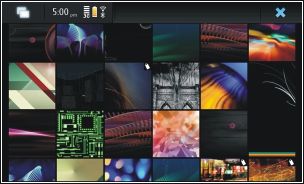
 . To stop the slide show, tap anywhere on the display.
TV-out settings 
Sort images
Modify images
Open an image for editing
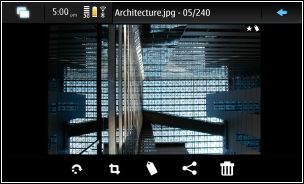
-
 -
Rotate an image.
-
Rotate an image.
-
 -
Crop an image.
-
Crop an image.
-
 -
Delete an image.
-
Delete an image.
-
 -
Share an image
-
Share an image
 or
or  -
Undo or redo an action.
-
Undo or redo an action.
Edit tags
You can create new tags, edit previously created tags, add or edit location information, or remove tags from images.
-
In normal screen mode, select
 .
.
You can also edit multiple images' tags in grid view mode. Open the menu, and select Edit images' tags and the images that you want to edit.
Photos settings
Share your images and videos 
About sharing content
You can share your content, for example, images or video clips, by uploading them to internet services, such as Ovi by Nokia or Flickr. To share, you must have a working internet connection and an existing sharing account.
Create a sharing account
To be able to send your content to different services, you need a sharing account. If you do not have an account, when trying to share, the device prompts you to create an account first. Follow the instructions on the display.
Share items
-
Enter a title and description, and select Share.
You can edit the tags, select which sharing account to use, or modify the sharing options.
When sharing multiple items, to edit the metadata of an individual image, tap the thumbnail of the image.
The changes you make to files when sharing will not affect the metadata of the actual content.
Tags
When sharing content, you can see possible metadata indicators as small icons on the images' thumbnails.
-
 -
Title, description or tags are assigned to the image.
-
Title, description or tags are assigned to the image.
-
 -
The file contains GPS coordinates or information of the file creator. If the metadata is not yet selected to be removed,
-
The file contains GPS coordinates or information of the file creator. If the metadata is not yet selected to be removed,  is displayed.
Edit tags
Share items using Bluetooth connectivity
Send items using mail
Sharing settings
When sharing content, select Options and from the following:
View sharing status
After selecting Share, the content is moved to the upload queue. In the status area, the status of the current upload is indicated with the following icons:

 Sharing is pending because there is no connection available. Open the status area menu, and select the icon to try establishing
a connection, or cancel the sharing.
Sharing is pending because there is no connection available. Open the status area menu, and select the icon to try establishing
a connection, or cancel the sharing.
 Sharing is blocked because an error has occurred. Open the status area menu, and select the icon to see more detailed information
of the error, and retry or cancel the sharing.
Sharing is blocked because an error has occurred. Open the status area menu, and select the icon to see more detailed information
of the error, and retry or cancel the sharing.
When the upload is complete, the icon is removed from the status area.