
Basic tips for using your device
 .
.
 , and then press the key that has the number printed at the top of it.
Advanced tips for using your device
-
Open a contact card from a conversation
-
Search for an application
-
Open a web link in a new window
-
Use the keyboard to scroll up or down on a web page
-
Zoom into or out of a mail message, image, web page, or camera
 . Using the physical keyboard, start entering the application name. Select the application from the proposed matches.
View the previous or following day, week, or month in the Calendar application
Copy text from a web page, text message, or instant message
-
To activate selection mode, drag your finger from the left of the touch screen onto the screen, and select
 .
.
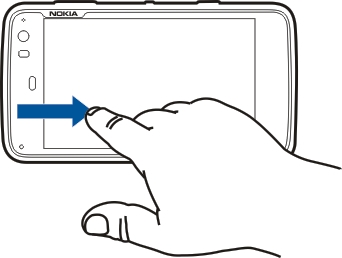
Copy text from a text input field, mail message, or note
-
Tap the text at the point where you want to start selecting.
-
Press and hold the shift key, and to select the text, use the arrow keys on the physical keyboard.
 , and select a song, album, or playlist to play. Select the album art image to switch between the current song and current
playlist view.
, and select a song, album, or playlist to play. Select the album art image to switch between the current song and current
playlist view.
Shortcuts
Here are some of the available keyboard shortcuts in your device. Shortcuts can make the use of applications more efficient.
General shortcuts
|
Take a screenshot of the current display. To view the screenshot, open the Photos application. |
|
|
Switch between input languages (virtual keyboard character set and dictionary). |
|
Activate or deactivate automatic display rotation when browsing the web. When activated, the display switches to portrait mode when you turn your device to portrait orientation. |
|
Skip to the previous song, video, or internet radio station. |
|
|
Autocomplete the command, if there is only one option, or show all available options. Corresponds to the tab icon in the X Terminal application. |
Troubleshooting
Q: What is my password for the PIN or PUK codes?
Q: What should I do if I start my device for the first time and nothing appears on the display?
Q: Why can't my device establish a GPS connection?
-
A: Establishing a GPS connection may take from a couple of seconds to several minutes. Establishing a GPS connection in a vehicle may take longer. If you are indoors, go outdoors to receive a better signal. If you are outdoors, move to a more open space. Ensure that your hand does not cover the GPS antenna of your device. If the weather conditions are bad, the signal strength may be affected. Some vehicles have tinted (athermic) windows, which may block the satellite signals.
Q: Why can’t I find my friend’s device while using Bluetooth connectivity?
Q: How can I close a Bluetooth connection?
-
A: To close an active Bluetooth connection, select the status area and , and select the device and . If another device is connected to your device, you can also close the connection from the other device.
To deactivate Bluetooth connectivity, select the status area and Bluetooth, and clear the Bluetooth on check box.
Q: Why can't I see a wireless LAN (WLAN) access point even though I know I'm within its range?
Q: How do I deactivate Wi-Fi off on my Nokia device?
Q: How can I send MMS messages?
Q: How do I know which software version is used in my device?
Q: How do I find my Wi-Fi MAC address?
Q: How can I create a new profile in my device?
Q: I had used Nokia PC Suite to synchronize my calendar. When I synchronized my calendar using Mail for Exchange, I had duplicate calendar entries. How do I remove the duplicates?
-
In the Mail for Exchange settings, deactivate calendar synchronization.
If you do not deactivate calendar synchronization before removing your calendar entries from your device, the entries are also removed from the server during the next synchronization, and they cannot be synchronized back to your device.
-
In the Mail for Exchange settings, activate calendar synchronization. The calendar is synchronized from the server back to your device during the next synchronization.